Database Menu
The 'Database' menu displays the database interface, which allows the
user to search and download a reference data set.
To search for a reference data set:
1. On a search engine, select search criteria. The default is 'General
Search', which gives a list of all available data sets stored in
the database
2. Enter a search string in a text field. If want to search
surface parameters, enter logical value (e.g. > or <) and searched-parameter-value into the text field. For example, Sa<1.42.
3. Click on the 'Search' button to search data files and the results are listed below the search engine.
4. To view detailed information of each data file, click on a title link,
which displays the information of part, process, measurement conditions,
and analysis data for the selected data file.
5. To download a data file, scroll down to an analysis table, click
on the 'Download' link, and the 'Save' dialog will display. It will ask the user where a zip file will
be saved.
6. When the zip file is opened, data files in TXT and SDF
data format can be seen.
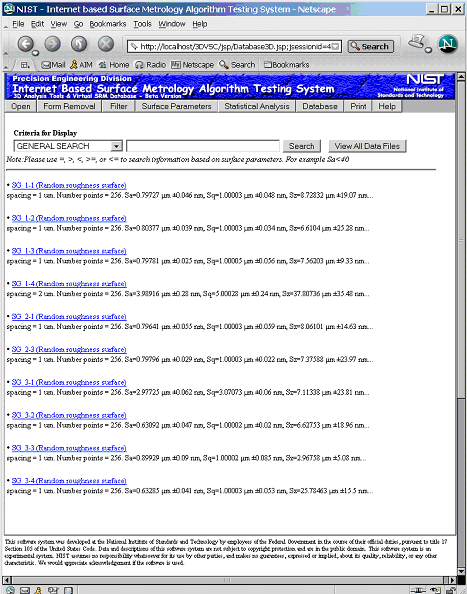
Figure 1. Search Engine
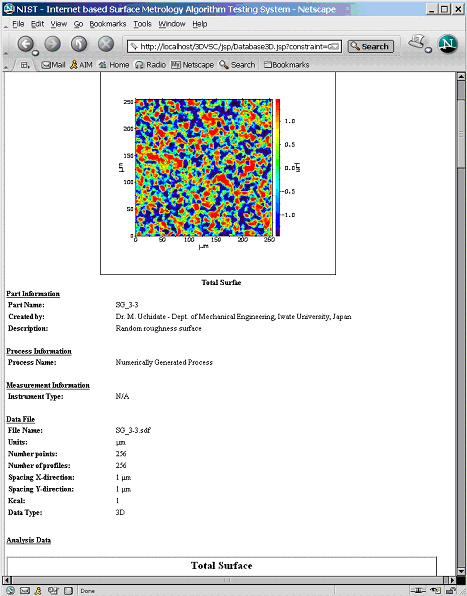
Figure 2. Detail view of a surface topography
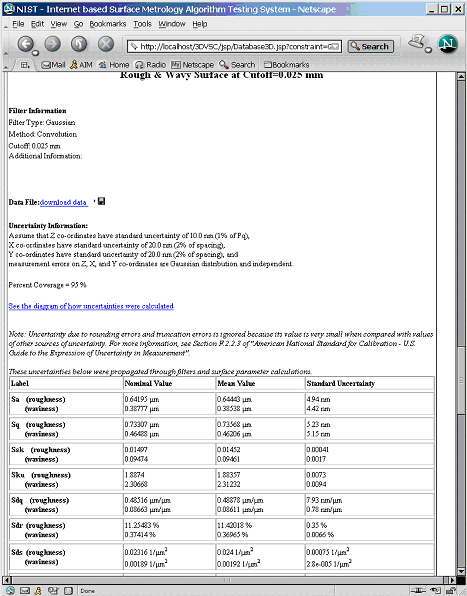
Figure 3. Analysis Data